
























Readom

独立社区项目,与 Amazon、腾讯、Google 均无关联。 An independent project, not affiliated with Amazon, Tencent or Google. 商标与许可Trademarks and licence

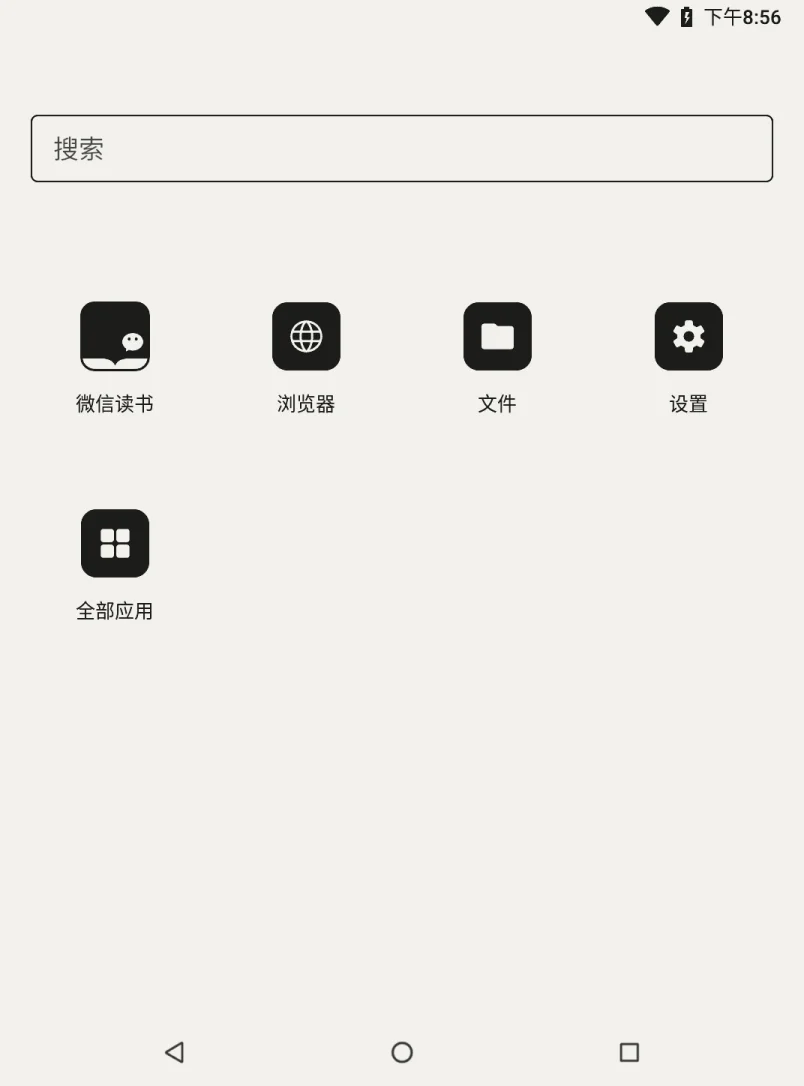
在书库里点一下,Kindle 就成了一台 Android

One tap in the library, and it is an Android

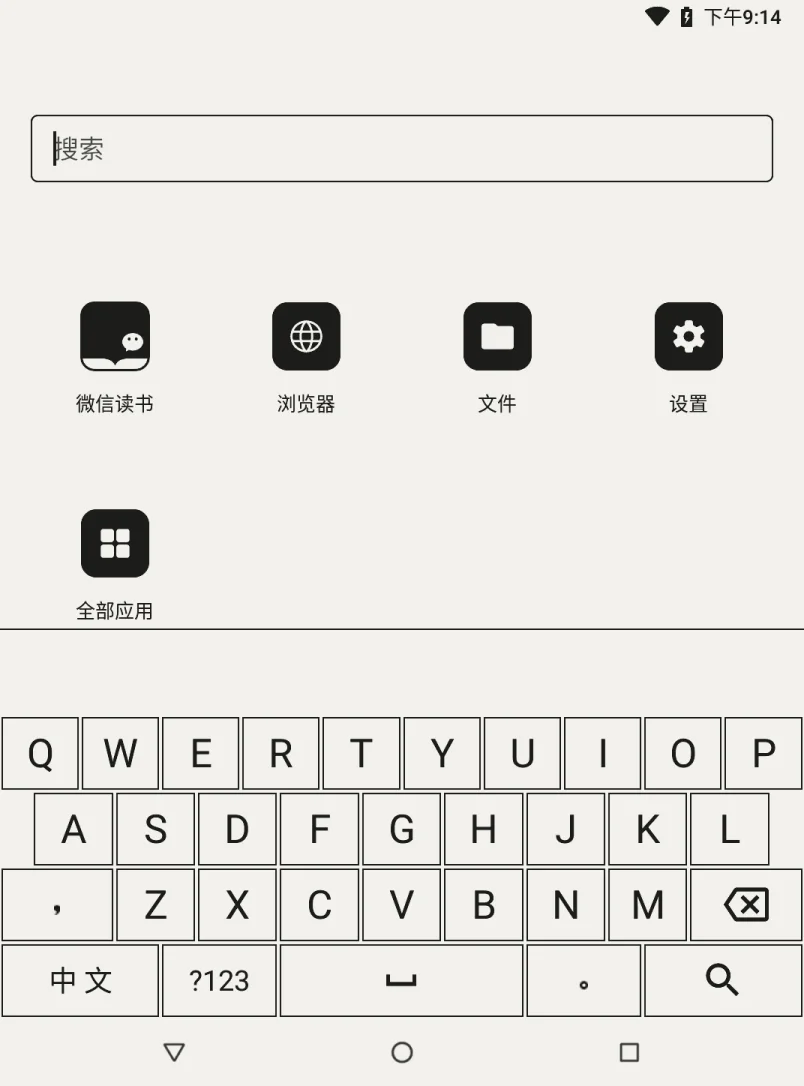
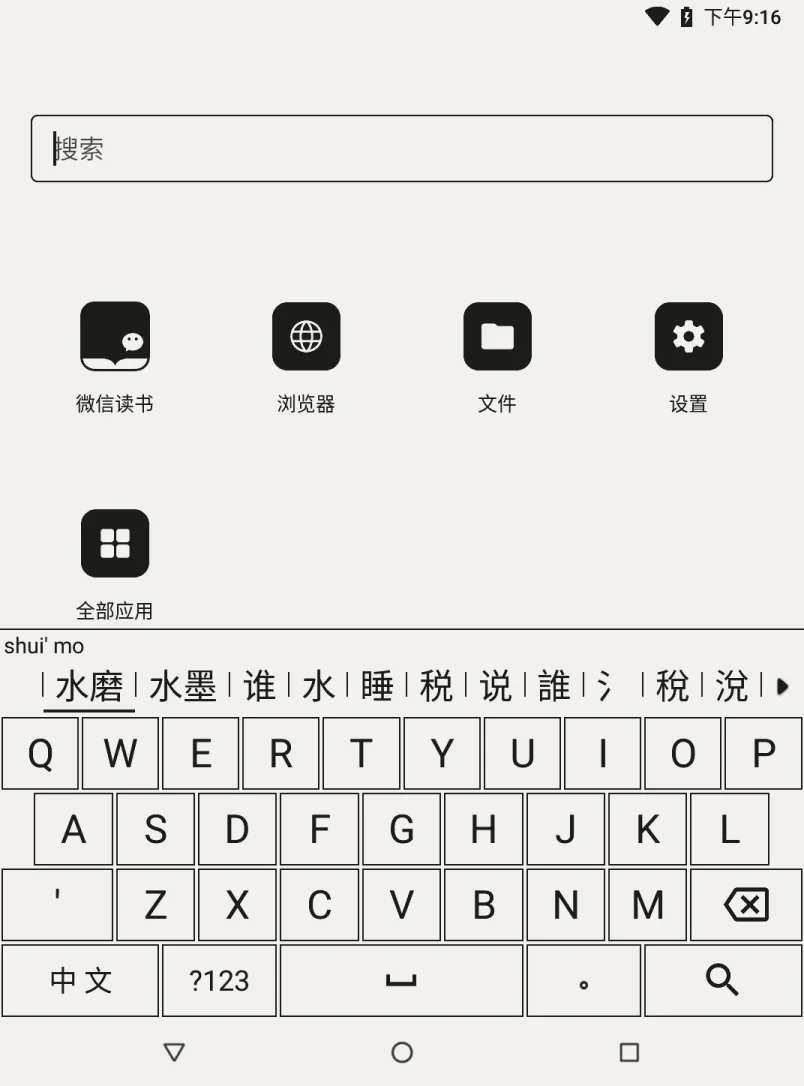
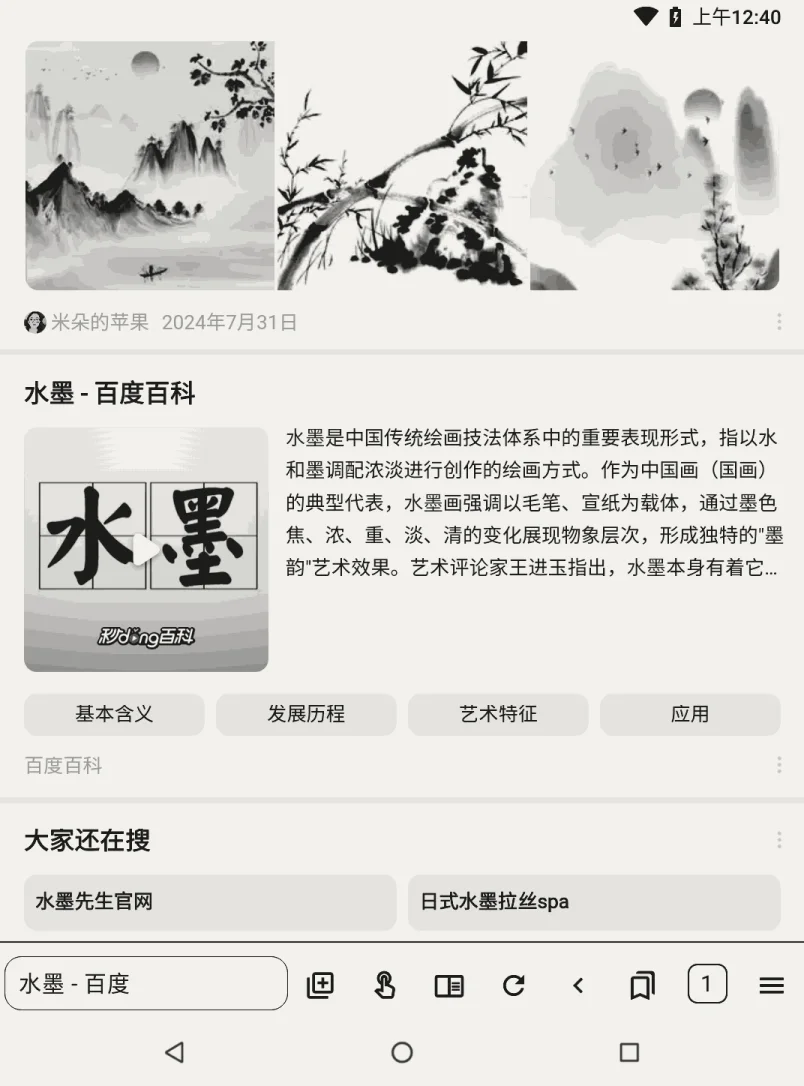
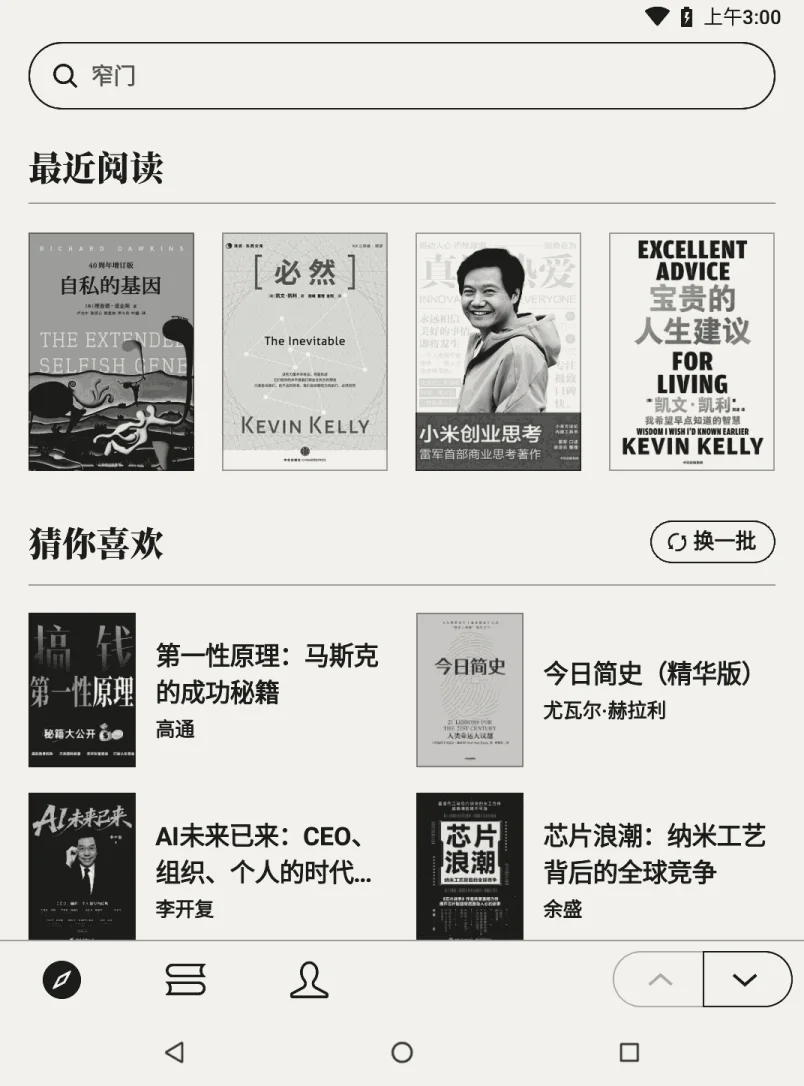
打几个拼音,今天的网就落在这块墨水屏上

A few letters of pinyin, and today’s web lands on e-ink

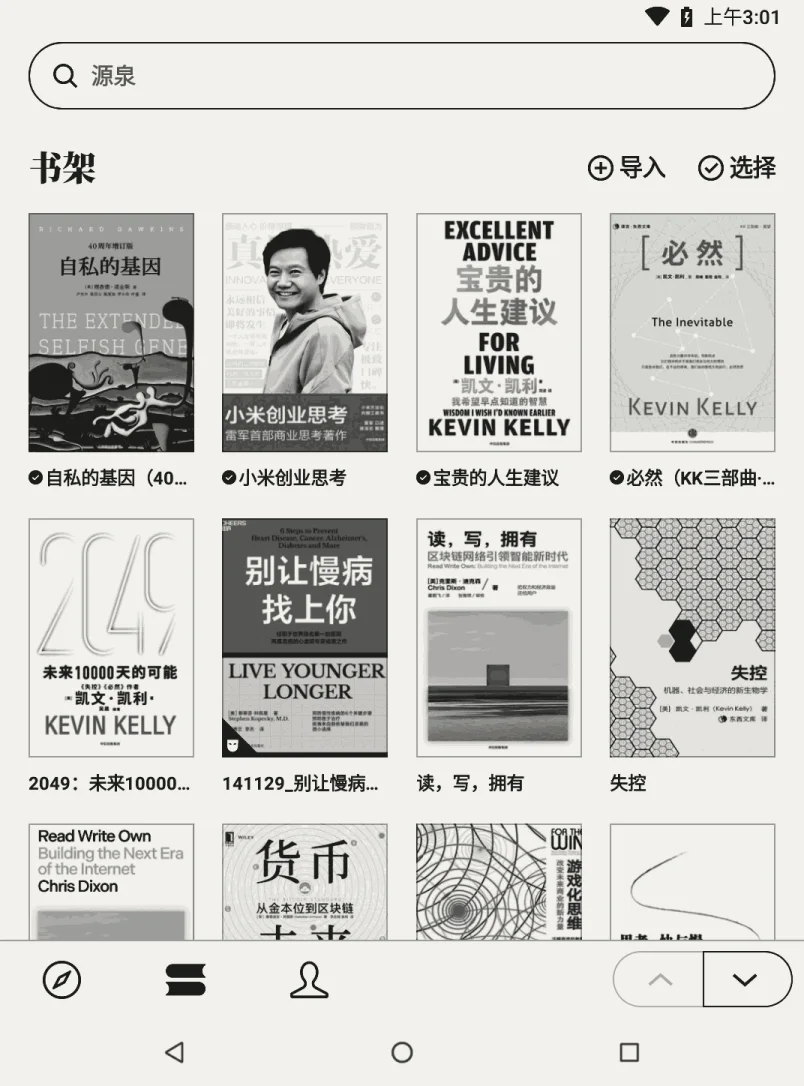
扫码登录,网上书库挑一本,书架上打开就读

Scan to sign in, take a book from the store, read it off the shelf

合上它,世界还亮着——想读的书,没有一本在门外

Closed, and the world stays lit — no book you want is out of reach

专为 Kindle 打造的 Android 系统An Android system made for the Kindle

唤醒你的 Kindle。

Wake your Kindle.

把 Android 装进 Kindle,点亮一个全新的阅读世界。

Put Android on your Kindle, and a whole new world of reading lights up.

在 GitHub 上给个 StarStar it on GitHub
  • Kindle / Android 随意切换
  • Switch between Kindle and Android
  • 流畅上网体验
  • Smooth web browsing
  • 一键安装微信读书
  • Install WeRead in one tap

独立社区项目,与 Amazon、腾讯、Google 均无关联。 An independent project, not affiliated with Amazon, Tencent or Google. 商标与许可Trademarks and licence


Readom — 安装 / Install

Install

安装

Install

电脑只用来拷一个文件。检查、下载、核对、写入、启动都在 Kindle 上完成。

The computer only copies one file. Checking, downloading, verifying, writing and starting all happen on the Kindle.

Requirements

准备工作

Before you start

机型ModelKindle Paperwhite 3 (7th gen, 2015)
系统版本Firmware5.16.2.1.1
越狱Jailbreak按 Once, following kindlemodding.org 做一次。与本项目无关,风险自行判断. Not part of this project; judge the risk yourself
空闲空间Free space2.6 GB
电量Battery40%,或者接着充电器 , or on a charger
网络Network能上网的 Wi-Fi,否则用离线包Wi-Fi, or the offline image
电脑Computer只用来拷文件,不装任何程序Only to copy a file; nothing to install

机型或版本不对时,安装器显示 E101 并停止,不改动任何文件。 On the wrong model or firmware the installer shows E101 and stops, having changed nothing.

Install

安装步骤

Installing

两种装法,结果一样,挑一种就行。

Two ways to do it, with the same result. Take either one.

方式一 · 让 AI 带你装

One · have an AI walk you through it

复制下面这段,发给任意 AI 助手。它会先确认你的机型和前提,再一步一步往下带;出错时按屏幕上的错误码接着说。

Copy the prompt below into any AI assistant. It checks your model and the prerequisites first, then takes one step at a time, and knows what the codes on screen mean.

看看这段写了什么See what it says
我有一台 Kindle Paperwhite 3(第 7 代,2015 年款,机身背面型号 DP75SDI),想装 Readom——给这台机器做的 Android 8.1。请一步一步带我装:每次只说一步,等我回复结果再说下一步。

需要知道的:
· 说明页:https://readom.app/#guide
· 前提:系统版本 5.16.2.1.1、已越狱(kindlemodding.org/jailbreaking)、至少 2.6 GB 空闲、电量 40% 以上
· 文件:Readom.sh(约 8 MB);Kindle 自己下不动系统时,再加离线包 readom-system.img.zst(约 191 MB)
· 装法:用数据线把文件拷进 Kindle 盘的 documents 文件夹 → 弹出、拔线 → 在书库里点「Readom」→ 约 18 分钟 → 它自己启动,约 3 分钟
· 回 Kindle:长按电源键,选「重启回 Kindle 系统」
· 出错时屏幕上会显示 E101 到 E403 的错误码,请按错误码告诉我怎么办

先确认我的机型和前提,再开始。
I have a Kindle Paperwhite 3 (7th generation, 2015, model DP75SDI on the back) and I want to install Readom — Android 8.1 built for this device. Walk me through it one step at a time: give me a single step, then wait for me to tell you how it went.

What you need to know:
· Guide: https://readom.app/#guide
· Prerequisites: firmware 5.16.2.1.1, jailbroken (kindlemodding.org/jailbreaking), at least 2.6 GB free, 40% battery or a charger
· Files: Readom.sh (about 8 MB); if the Kindle cannot download the system itself, also the offline image readom-system.img.zst (about 191 MB)
· How: copy the files into the documents folder on the Kindle drive over USB → eject and unplug → tap “Readom” in the library → about 18 minutes → it starts by itself, about 3 minutes
· Back to Kindle: hold the power button and choose “Restart to Kindle”
· If it fails, the screen shows a code between E101 and E403 — tell me what to do by the code

Check my model and the prerequisites first, then begin.

方式二 · 自己一步步装

Two · do it yourself

  1. 下载 Readom.sh

    Download Readom.sh

    约 8 MB,从本站下载,不需要能上 GitHub。Kindle 自己下不动系统时,再下一个离线包(约 191 MB),和它一起拷进 documents,安装器就不再联网;装完离线包会自己删掉。

    About 8 MB, from this site — GitHub is not needed. If the Kindle cannot download the system itself, take the offline image too (about 191 MB) and put it in documents beside it: the installer then stays offline, and the image deletes itself once installed.

  2. 拷进 documents

    Copy it into documents

    用数据线接电脑,打开 Kindle 盘,拷进去。

    Plug in the cable, open the Kindle drive, drop it in.

    电脑上没出现 Kindle 盘:先按电源键唤醒再看,再不行换一根数据线或换个 USB 口。

    No Kindle drive on the computer: wake it with the power button first; then try another cable or another port.

  3. 弹出,拔线

    Eject, unplug

    拔线后可以接充电器;安装中不要再接电脑。

    A charger is fine afterwards; do not connect the computer again while it installs.

  4. 在书库里点「Readom」

    Tap “Readom” in the library

    检查 → 下载 → 核对 → 安装 1 → 安装 2,每步有进度条。实测约 18 分钟。

    Check → download → verify → install 1 → install 2, each with a progress bar. About 18 minutes, measured.

  5. 等它自己启动

    Let it start

    约 3 分钟,期间屏幕不变。装完离线包自动删除。

    About 3 minutes, and the screen does not change meanwhile. The offline image deletes itself.

正在准备存储空间(第 2 步,共 2 步)

Preparing storage (step 2 of 2)

这一步较慢,请耐心等待。

68%
安装画面:中英同屏
Installer screen: both languages at once

Good to know

注意事项

Good to know

装之前不必读完。遇到哪一条,点开哪一条。

Nothing here has to be read first. Open the one you have run into.

装到一半断了,会不会出问题?Something interrupted the install — is it broken?

不会。没电、强制重启、不小心退出都一样:再点一次「Readom」,从断点接着装,已经下载过的部分保留。

No. A flat battery, a forced restart, an accidental exit — tap “Readom” again and it carries on from where it stopped, keeping what was already downloaded.

怎么进 Android,怎么回 Kindle?How do I switch between the two systems?

进 Android:在 Kindle 书库里点「Readom」,约 3 分钟。

Into Android: tap “Readom” in the Kindle library. About 3 minutes.

回 Kindle:长按电源键,选「重启回 Kindle 系统」。

Back to Kindle: hold the power button and choose “Restart to Kindle”.

屏幕一直不变,是卡住了吗?The screen is not changing — is it stuck?

启动的三分钟里屏幕本来就不变,这是正常的。只有反复闪烁才是没能启动。

The screen does not change during the three minutes it takes to start, and that is normal. Only a screen that flashes over and over means it did not start.

真的卡住时先等两分钟,它会自己回原厂系统。还没动静就按住电源键不放,直到屏幕变化(最多约 40 秒),数据不会丢。

If it really has hung, wait two minutes: it returns to the Kindle by itself. If nothing happens, hold the power button until the screen changes — up to about 40 seconds. Nothing is lost.

怎么装别的应用?装好的在哪?How do I install other apps, and where do they go?

用「文件」打开 APK。大应用要等一两分钟——这台机器没有 GPU,代码要先在本机转换一遍。

Open the APK with Files. A big app takes a minute or two: with no GPU, its code is converted on the device first.

装好之后出现在首页的空格里;首页还有一格「全部应用」。

It appears in an empty cell on the home screen. There is also an “All apps” cell.

怎么升级到新版?How do I upgrade?

用新版的 Readom.sh 覆盖旧的,再点一次。应用和数据都保留,约 5 分钟。

Replace Readom.sh with the new one and tap again. Apps and data are kept; about 5 minutes.

少数升级换了启动镜像,已装的应用要重新编译,启动前的画面会写明:一个大应用一到三分钟。请接充电器,不要强制重启。

A few upgrades change the boot image, and installed apps are compiled again — the screen says so before it starts. One to three minutes per large app. Keep it on a charger and do not force a restart.

怎么把它删掉?How do I remove it?

全部删掉:删 android/ 这个文件夹和 documents/Readom.sh。Kindle 原来的系统和书都不受影响。

All of it: delete the android/ folder and documents/Readom.sh. The Kindle’s own system and your books are untouched.

只清空数据:删 android/data.img,再点一次「Readom」,会生成一个空的。

Just the data: delete android/data.img, then tap “Readom” again and an empty one is made.

屏幕上出现了错误码The screen shows an error code

错误码的中英文说明屏幕上都有,下面是全部十四条。

The screen explains each code in both languages. All fourteen are here.

Code 意思Meaning 怎么办What to do
E101 型号或系统版本不支持Model or firmware not supported 无法安装;没有改动任何文件Cannot install; nothing was changed
E102 电量低于 40%,又没在充电Below 40% and not charging 充电后再点Charge, then tap again
E103 上一次的安装还在进行An install is still running 等它完成Let it finish
E104 还连着电脑Still connected to a computer 弹出并拔线再点;充电器没关系Eject and unplug, then tap; a charger is fine
E201 下载中断Download stopped 查 Wi-Fi 后再点,会接着下Check Wi-Fi and tap again; it resumes
E202 需要下载,但 Wi-Fi 没连A download is needed, no Wi-Fi 连上 Wi-Fi,或用离线包Connect Wi-Fi, or use the offline image
E203 日期时间不对The clock is wrong 在设置里改对Correct it in Settings
E302 安装包损坏,已删除The package was damaged and deleted 再点一次重新下载Tap again to fetch it
E303 这个版本的发行文件有问题A fault in the release itself 不是你的问题,请报告Not your fault — please report it
E304 已有的数据来自不兼容的版本Existing data is from an incompatible version 继续用原来的版本Keep using the older version
E401 空间不够Not enough space 屏幕上写着还差多少 MBThe screen says how many MB short
E402 读写存储出错A storage error 重启 Kindle 后再点Restart the Kindle and tap again
E403 内存不够Out of memory 重启 Kindle 后再点Restart the Kindle and tap again
没能启动No start 已回到 Kindle 原来的系统You are back in the Kindle’s own system 再点一次:原因留在盘上,该重装的会自己重装Tap again: the reason is on the drive, and what needs rewriting is rewritten

报告问题时带上日志:每次点击都记录在 android/logs/<时间>/,只留最近 5 次。内核日志按允许清单筛过:序列号、MAC、Wi-Fi 名称不会写进去。

Send the log with a report. Every tap is logged under android/logs/<time>/, the last five kept. The kernel log is filtered by an allow-list: no serial number, MAC address or network name goes in.

GitHub Issues

会不会上传我的数据?Is anything uploaded?

不会。安装器只去本项目的发行地址取发行文件,不往外发任何东西。

No. The installer only fetches this project’s own release files, and sends nothing anywhere.

屏幕波形、Wi-Fi 校准这些每台机器独有的东西留在设备上,每次启动时现场读取。

The panel waveform, the Wi-Fi calibration and everything else unique to one unit stays on the device, read on the spot at every start.

怎么确认下载的文件没被改过?How do I know the file has not been tampered with?

一共核对三道。安装器在写第一个字节之前核对 SHA-256,不对就删掉重下,旧系统仍然可用;每次开机再核对一遍,不符就不启动,并把原因留在盘上,下一次点击读到它自己重装,不用接电脑。

Three times. The installer checks the SHA-256 before the first byte is written; a bad file is deleted and fetched again, and the old system still runs. Every start checks it again: a mismatch stops the start and leaves the reason on the drive, so the next tap rewrites the image with no computer.

第三道是你自己:

The third is you:

shasum -a 256 Readom.sh
certutil -hashfile Readom.sh SHA256
发行物里有什么,用的什么许可?What is in a release, and under what licence?
本项目自写的代码和文档This project’s own code and docsApache-2.0
内核、补丁、内核模块Kernel, patches, modulesGPL-2.0-only
AOSP 各项目AOSP projects沿用原许可as upstream
EinkBroGPL-3.0-or-later
Chromium WebViewBSD-3-Clause …
拼音词库(rime-ice)Pinyin dictionary (rime-ice)GPL-3.0-only
Noto EmojiOFL-1.1
图标(Lucide)Icons (Lucide)ISC

仓库和发行包都不含亚马逊的私有文件(面板波形、Wi-Fi 校准、原厂模块)。它们在安装时从使用者自己的设备上提取。 Neither the repository nor a release contains Amazon’s private files — panel waveform, Wi-Fi calibration, stock modules. They are taken from the owner’s own device at install time.

仓库里的安装说明Install doc in the repo

Readom — 更新日志 / Changelog

Changelog

更新日志

Changelog

每一版改了什么,以及在设备上验到哪里了。每条都是在这台机器上跑出来的,没上机的会照原样标出来。

What changed in each release, and how far it was verified on the device. Everything here was run on the hardware; anything that was not says so.

  • 2026-10-24

    V75首个公开版本first public release

    第一个公开发行的版本:为 Kindle Paperwhite 3(第 7 代,2015 年款,固件 5.16.2.1.1)构建的 AOSP 8.1,和一个在 Kindle 上自己跑完的安装器。

    The first public release: AOSP 8.1 built for the Kindle Paperwhite 3 (7th generation, 2015, firmware 5.16.2.1.1), and an installer that runs on the Kindle itself.

    • 在书库里点一下就装,首次约 18 分钟,之后的升级约 5 分钟;原来的系统和书都不动。
    • One tap in the library installs it, about 18 minutes the first time and about 5 for an upgrade; the Kindle system and your books are left alone.
    • 长按电源键随时回 Kindle 原来的系统;装不成或起不来,会自己回去。
    • Hold the power button to go back to the Kindle’s own system at any time; if it cannot install or cannot start, it returns by itself.
    • 翻页不闪:翻页本身没有黑闪,约每 20 页清一次残影——在屏幕前 A/B 比过,从 30 / 20 / 12 里挑的(原厂每 6 页就清一次)。
    • No flash on a page turn: about one clear every twenty pages, picked from 30 / 20 / 12 in an A/B in front of the screen — the stock firmware clears every six.
    • 浏览器和拼音输入法是内置的,输入法界面按 Kindle 重做;微信读书墨水屏版一键装上——系统自带的安装器从腾讯官网下载官方版,一百多 MB,要先连 Wi-Fi。
    • A browser and the pinyin IME are built in, the keyboard redrawn for the Kindle; WeRead for e-ink installs in one tap — the bundled installer downloads the official build from Tencent, over 100 MB, so Wi-Fi first.
    • USB 在设备上确认:sys.usb.state=mtp,adb。
    • USB confirmed on hardware: sys.usb.state=mtp,adb.
    • 启动入口里不含任何设备数据:波形、Wi-Fi 校准、存储布局每次启动现场生成。这是它能开源的前提。
    • The boot entry carries no device data: waveform, Wi-Fi calibration and storage layout are produced on the spot at every start. This is what makes open-sourcing possible.

Next

以后的版本

What comes next

每个新版本都会记在这里,也都会在 GitHub 上发一份。想知道现在正在做什么,看还差什么和工程记录。

Every release is written down here and published on GitHub. What is being worked on right now is in the open items and the engineering log.

下载Download GitHub ReleasesGitHub Releases 还差什么Open items 工程记录Engineering log

选择你的设备Choose your device

这一台现在就能装。This one runs it today.

  • Readom.sh 安装器。拷进 Kindle 的 documents,在书库里点一下就开始装。 The installer. Copy it into documents on the Kindle and tap it in the library. 8 MB V75 下载Download
  • readom-system-v75.img.zst 离线系统包。只在 Kindle 自己下不动时才要,和 Readom.sh 一起拷进 documents。 The offline image. Only needed when the Kindle cannot download it itself; put it in documents beside Readom.sh. 191 MB V75 下载Download

还装不了,正在移植。Not yet — being ported.

内核配置、屏幕、内存都和 Paperwhite 3 一样,缺的是一台机器。

Same kernel configuration, screen and memory as the Paperwhite 3. What is missing is a device.

看移植进展See where the port is

还装不了,正在移植。Not yet — being ported.

内核源码和 Paperwhite 3 逐字节相同,内存布局要改过。缺的也是一台机器。

The kernel source is identical to the Paperwhite 3’s, byte for byte; the memory layout has to be reworked. A device is missing here too.

看移植进展See where the port is